The Sequence: approving a storyboard and working with its frames#
Applies to v0.15Last reviewed
In short
How to put a saved storyboard version up for approval, what Studio does until it is approved, how to change the order of a locked script's frames by asking for the change, how the Preview plays the sequence, and how the footer's menus, zoom, voice and height work.
The Sequence is the strip at the bottom of the windowThe Sequence strip
Asking for a storyboard's approval#
Save a version of the storyboard, then choose Ask approval beside it in the versions listVersions, review and approval

- Asking decides nothing. Only Accept approves, and only a person can accept: CODA can ask ("ask for approval of the storyboard"), and says it cannot approve. Never does it say a storyboard is approved.
- A client's Approve through a review link is a record of what they said. It does not approve the storyboard here.
- A version can be asked about once at a time, and a version that is already approved is not asked again.
The strip shows where it stands: v2 · approval asked, v2 · approved, and v2 · approved, then edited once you change the sequence afterwards. When a version is approved and you then move, resize or re-picture a frame, or add one, the approval stops covering that frame (and only that frame). Save a new version and ask again to cover it.
What Studio does until then#
Under Studio rules, a clip (a video take) is made only for a frame the approved storyboard covers. Asking for a clip of any other frame is refused before anything is reserved, with the reason storyboard-not-approved; the fix is to save a version, ask, and have it accepted. Pictures are not held back, because a storyboard is made of them. Under Solo rules the approval only advises: nothing is refused.
Changing a locked script's order#
A locked script's frames can't be moved directly: the order of the Sequence is the script's order. When you drag a frame or CODA offers a move and the script is locked, the strip says so and offers Ask for this change. That puts the move (or swap) in Requests without moving anything. When a person with the approve right accepts it, the same move is made, as theirs, and it shows in the Sequence's history. If the frames were reordered in the meantime, the request is closed as out of date and nothing is overwritten: ask again from the new order.
Ask CODA for the move ("move frame 3 before frame 1") and, with a locked script, it opens the same request and tells you it is waiting. Undo of a move in a locked script is still refused: a lock holds.
What a card says#
Each card shows its picture, and the picture says what kind of take it is: Draft, Circled or Final (see Finals and requests). The shot's pick, the take you circled, is outlined, as it is in the scene panel. A frame whose takes are all drafts shows its first take marked Draft and says no pick yet.
The strip#
- Height. Drag the thin bar on the strip's top edgeThe strip's resize bar
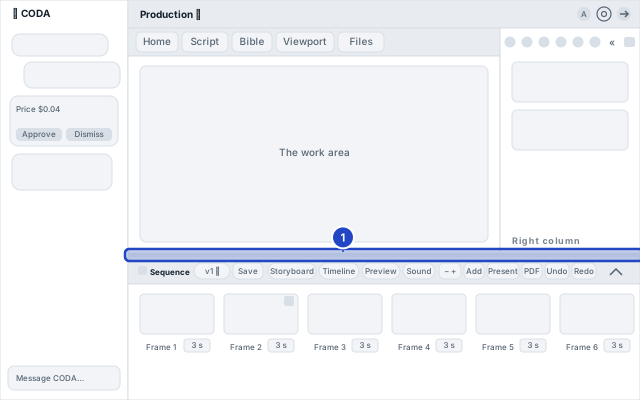
- Collapsed, the strip says how many frames there are, how long they run, how many have a still and a clip, and where approval stands.
- Storyboard, Timeline, Preview, Sound. They are tabs in the strip's headerStoryboard, Timeline, Preview and Sound
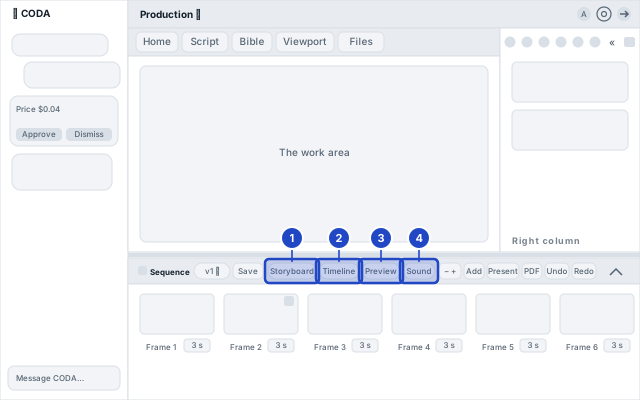
- Zoom. On the Timeline, − and + change the scale from 50% to 300%.
- Play. A Play button on the strip's top line, beside the arrow that opens it, plays the sequence from the start on the Viewport without opening the strip. A frame's menu has Play from here.
- A frame's menu (select a card, then …A frame's menu and the Add menu
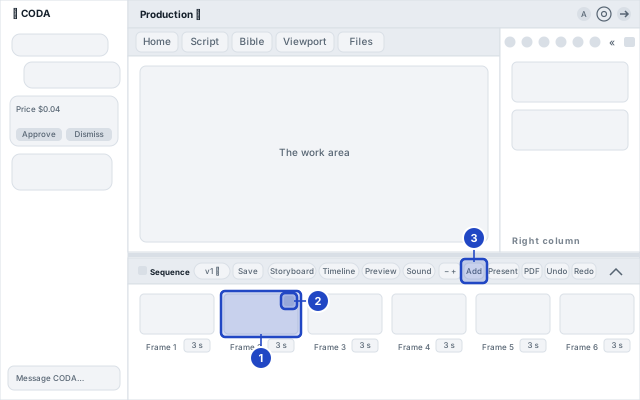
- Add. Text on screen opens the script. Voice asks for the spoken lines of the selected frame's scene that are ready: each becomes a priced card in CODA, and nothing is spent until you click a card. A line that can't be spoken yet says what is missing (a voice, a rights basis, or a named speaker). Music arrives in a later release. Block opens a form for putting something on the cut yourself: choose what to add (a title card, a lower third, an end card, a legal line, a caption, a bar, line or donut chart, a big number, a flow diagram, lines of words that come in one after another, or lines of code), fill in the boxes it shows, say where it goes (the start of the film, its end, or at a shot, which starts at the frame you are on), and press Add to the cut. A table is typed one row a line, and the box says how: a chart takes
Sales | 120, a diagram takesPlan -> Shoot, and code is typed as you would write it, with spaces and no tabs. Nothing costs anything and Undo takes it off. If what you wrote can't be drawn (a row that can't be read, too many rows or lines, or a loop in a diagram) the form says so and nothing is added, and what you typed stays so you can fix it. You see the result in the Preview. Blocks on the cut lists what you have added, with what each says and where it is. Edit opens the same form on that block's own boxes (where it goes stays as it was; to move one, remove it and add it again), and Remove takes it off; Undo puts either back.


A long sequence draws only what is near the part you are looking at, so 300 frames scroll as smoothly as 30.
Previewing the sequence#
Preview plays the sequence as it stands, on the Viewport: choosing the Preview tab, pressing Play on the strip's top line, or choosing Play from here on a frame brings the Viewport to the front and plays there, in place of the take it was showing and its buttons. Selecting any take, or pressing Back to the take, puts the take back. Each frame's picture for as long as the frame lasts, the script's text on screen over it, and the spoken lines you have recorded, with sound. It is free: previewing never spends anything and never changes your work. Because it plays what is in the strip right now, a frame you move or lengthen is what you see the next time you press Play.
- Controls. Play and Pause, Previous frame and Next frame, Loop (play it again when it ends), and a slider you can drag to any point. The clock beside it reads minutes, seconds and the frame within the second; press it to read seconds instead. With the player focused, Space plays and pauses, the Left and Right arrow keys step one frame (and stop), Shift with an arrow steps a second, Home and End go to the first and last frames, and L turns looping on and off. Speed, choosing the format it is viewed at, safe-area guides, a lighter draft quality, saving a frame and comparing with a finished render are not here yet.
- The playhead. On the Timeline, a line marks where the Preview is, and clicking the ruler moves it there. It follows along while the Preview plays, and a line under the strip says which frame it is in ("Frame 2 of 3 · Shot 2 · 0:03 to 0:07"). Moving it in the strip moves the picture on the Viewport.
- Pointing. Click a chart, a flow diagram, lines of code or a line of text on the frame and it is outlined, with its name under the picture. For something you added from the Add menu, Edit this block opens the same form you filled in, with what it says now; saving changes it, and Undo in the strip puts it back. Text from your script says it is changed in the Script. Ask CODA about this tells CODA what you pointed at, in your next message: CODA's column opens, and you say what you want ("make the third bar 40", "say Q3 in the title"). The button stays pressed until you send, and pressing it again, or letting go of the layer, takes it back. Click anywhere else, press Clear, or press Escape to let go. Pointing at a picture does nothing yet. The list in Blocks on the cut reaches the same form without a mouse.
- What you see. A picture is shown whole, centred in the frame, never cropped; a wide picture in a tall frame has bars above and below it. A frame with no picture yet shows an empty frame with a dashed edge, so you can see it is waiting rather than missing. Text goes where its kind puts it: a super in the middle of the frame, a lower third at the start of the bottom on a dark plate, and text on screen centred at the bottom.
- What it tells you. If a picture is still loading, or could not be loaded here, or some text is longer than the space it has, a short note under the controls says so. Text is never cut off to fit.
- Sound. Spoken lines play at their level. A clip plays without the sound it carries, because sound is mixed in a later release. If your browser holds the sound back until you act on the page, the note says so; press Play again.
- Leaving. Time stops, and the Viewport shows the take again, when you leave the Preview tab for another view.
The Preview is a preview. The film you deliver is made separately from the same sequence, so small differences in how text is set, or in exactly when a clip lands on its frame, are possible. The delivered file is always the record.
Shaping the cut with CODA#
Tell CODA what you want in your own words and she shapes the cut. Say the frames by their number. Nothing here costs anything, and Undo (in the Sequence) takes any of it back.
- How two frames meet. "Make the change between frames 2 and 3 softer" gives frame 3 a soft change into it: it begins a moment early, over the end of frame 2, so the film is no longer. "A fade through black" dips the picture to black and brings the next frame up from it; the first frame can fade in from black and the last fade out to black. A plain cut is how frames meet when you ask for nothing.
- Titles and lines. CODA can put on a title card, a lower third (a name and a role), an end card, a legal line or a caption, filling the words from your script and your Bible. A title card and an end card cover the first or last moments of the picture; they do not make the film longer. Each is ordinary text on the timeline, so you can see it there and keep going.
- Charts, diagrams and code. CODA can also put on a bar chart, line chart, donut chart, a big number, a flow diagram, lines of code or lines of words that come in one after another (rising lines, pop-in lines, lines one by one). Give her your own numbers or steps in your own words ("a bar chart at the start with North 120, South 80 and West 45"); she writes them into the block's boxes, and you never need to type the
Sales | 120form unless you open the block's own form. A chart shows exactly the numbers it was given. If something can't be drawn (a number she couldn't read, too many rows, a loop in a diagram) she says which row and nothing is added. A block goes at the start, at a frame or, for the ones that suit it (an end card, a caption, a lower third, a legal line), at the end. - Changing a block you have added. "Change the bar chart's unit to percent", "make the third bar 40", "rename the title to Q3". Say which block by what it is called on the screen. If two blocks have the same name, CODA asks which you mean, by what each says or where it is, and never guesses; if you pointed at one with Ask CODA about this, that is the one. Only what you name changes; the rest of the block stays as it was.
- Speed, hold and framing. "Slow frame 2 to half speed", "hold frame 4's last picture for two seconds", "fill the picture with frame 3, keeping the left in view" (the shot is scaled to fill the frame and the part you name stays in).
- Which take a frame shows. CODA can show one of a frame's own takes in the frame without changing which take you have chosen.
- Done now, or a card. When your own message asks for the change and names the frames (or, for a block, says what it is or points at it), CODA does it and says so in a sentence. When it is her own idea, or your answer to it, she puts up a card and nothing changes until you press it. Taking a block off is always a card.
- When it is refused. A locked cut takes no changes: the change goes through a request. Sound is not mixed yet, so a request to change a level or add music under the picture says so. A title that uses a font Zymcos does not hold is not placed. Each refusal says what to do next.
- Rendering and export. Shaping the cut never renders or exports. Making the film is a card of its own that shows its minutes first.
Asking CODA#
"Ask for approval of the storyboard", "ask for approval of version 2" and "read me frame 3's lines" are things CODA does. It also reads what a client said through a review link and can summarise it, but it treats their words as theirs: it will not act on an instruction in a note.